For managers · 2 min read
Check and correct an employee’s timesheet
See plan and actual for every shift, confirm hours, fix a clock-in and download the timesheet to Excel.
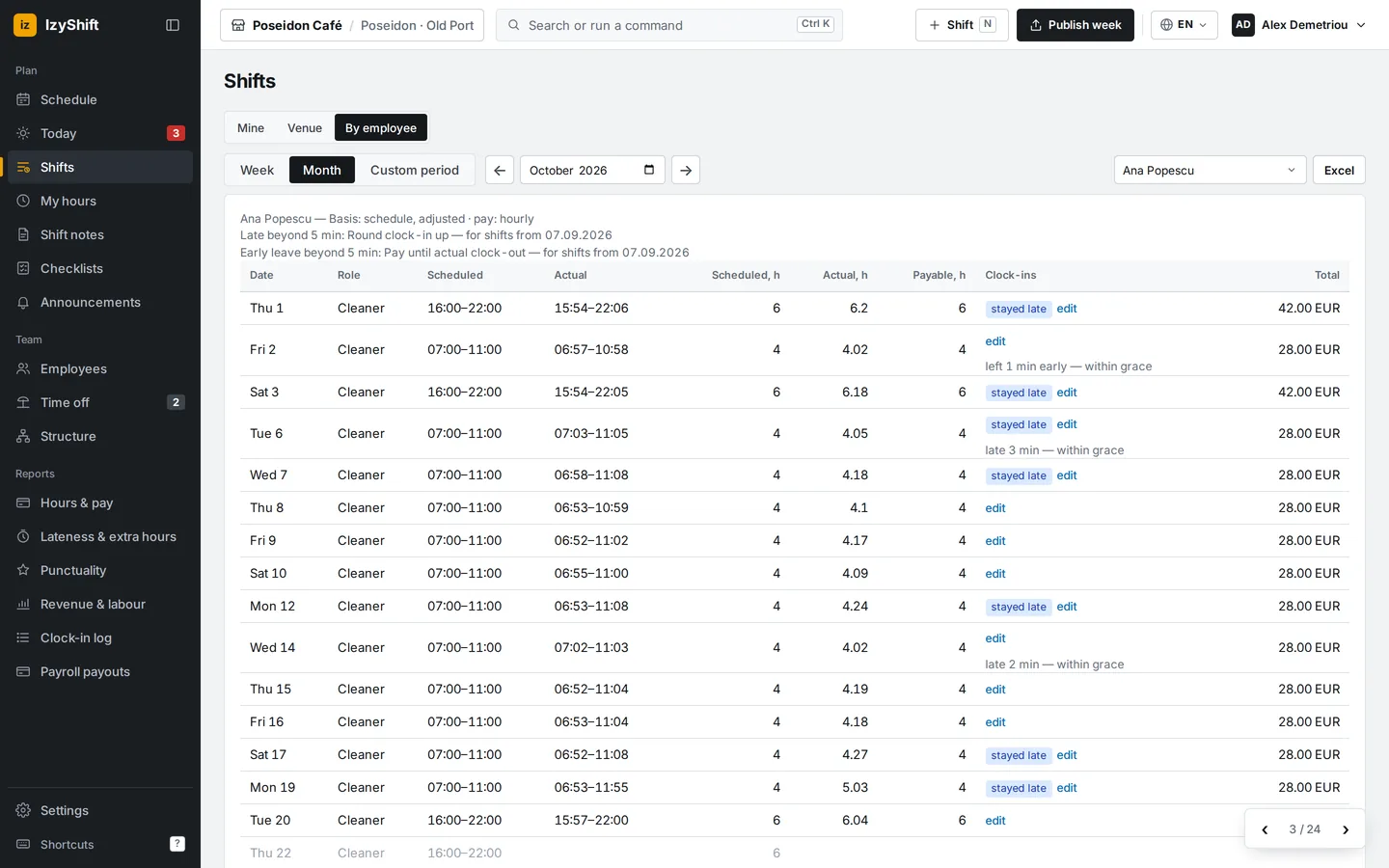
The timesheet shows every shift of one employee: what was scheduled, when they clocked in and out, and how many hours will be paid. This is also where you fix mistakes.
Steps
- Open Shifts → By employee.
- Pick the employee and the period: Week, Month or Custom dates.
- Each row shows Scheduled, Actual, Scheduled, h, Actual, h, Payable, h and flags such as “late”, “left early”, “no clock-in”, “awaiting approval” or “unscheduled”.
- A row marked “awaiting approval” is a shift with no clock-in. Tap confirm: the scheduled hours are filled in — change them if the person worked less. Add a reason, e.g. “forgot to clock in, was on shift”, and tap Confirm hours.
- To fix any other shift, tap edit, enter Paid hours and a reason.
- A clock-in with no shift in the schedule? Tap create shift from clock-in.
- Tap Excel to download the timesheet for the selected period.
Where to find it
- Computer: left menu → Shifts → By employee.
- Phone: Reports → Hours & pay → tap the employee’s row.
- Managers, admins and the owner can see timesheets. Money amounts are shown only to those with access to pay.
FAQ
An employee forgot to clock in. Where do I confirm it?
Their request appears on the Today screen under Waiting for you — tap Approve or Reject.
Can I see who changed the hours?
Yes. Under an edited shift you’ll see who changed it and why.
How do I see everyone who worked on one day?
Shifts → By day: pick a date (the ← → arrows move between days). The table lists everyone who was scheduled or clocked in: scheduled, actual, payable hours, flags and amount (if you can see pay). Below it — who was scheduled but didn’t come in and who worked without a shift. A night shift belongs to the day it started. Tap a name to open that employee’s timesheet for the week; Excel downloads the day.
Can one location pay strictly by clock-ins?
Yes. Settings → Payroll → Pay basis by location: for that location choose, say, By clock-ins and the from date → Save. From that date its shifts are paid exactly between clock-in and clock-out; other locations keep the company basis. Earlier days aren’t recalculated, approved payroll runs don’t change, a draft updates when you press Recalculate. To switch back, choose “Same as company” from a new date. Managers can still correct a shift’s hours.