For managers · 2 min read
Use the Today screen to see who’s on shift
See who is working right now, who is late or hasn’t come in, and handle clock-ins and requests from one screen.
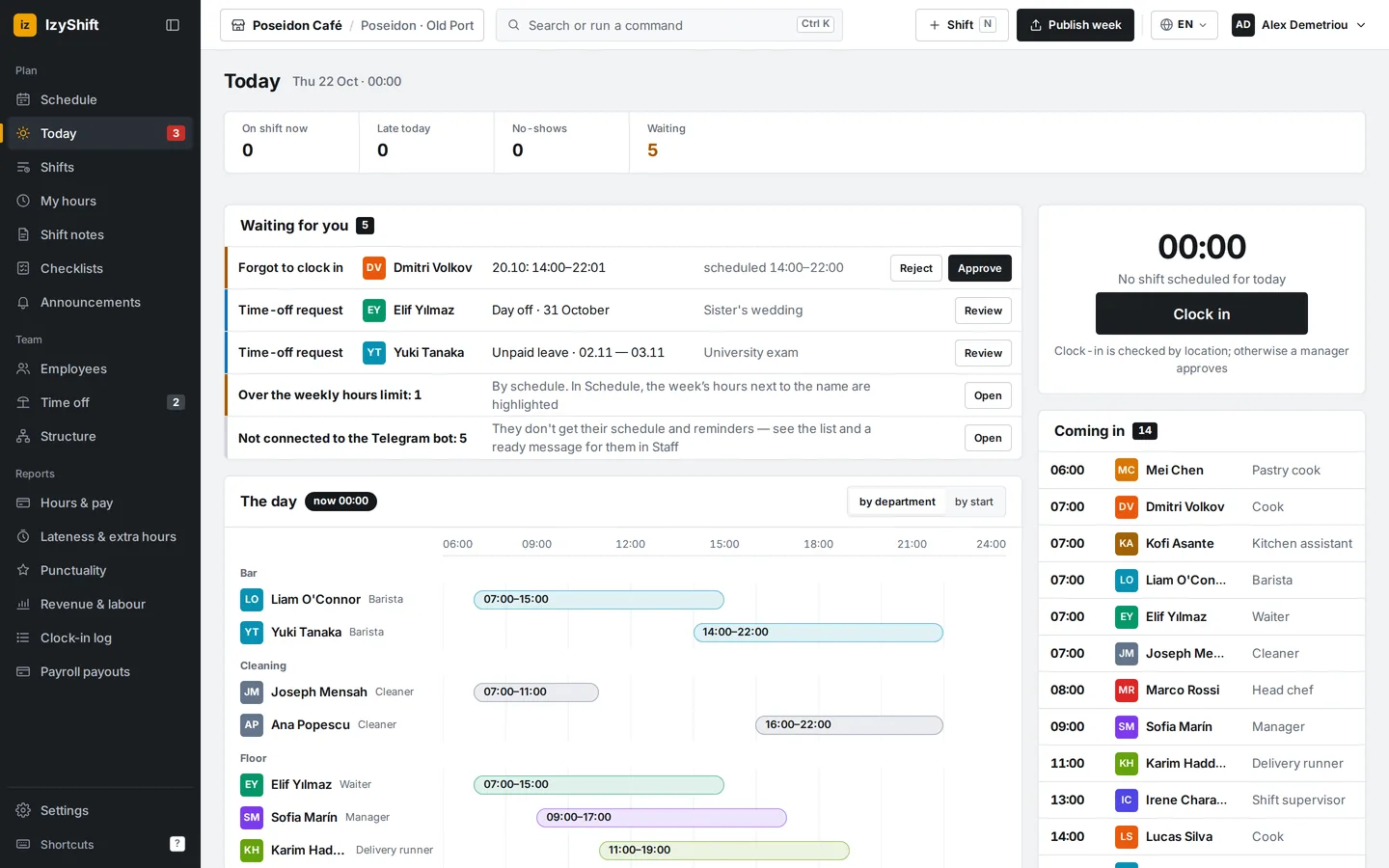
Today is the manager’s main screen during service. It shows who is already working, who is running late, and everything that needs your decision.
Steps
- Open Today. At the top there are four tiles: On shift now, Late today, No-shows and Waiting for you.
- Check the Waiting for you list. It holds clock-ins waiting for approval and “forgot to clock in” requests. Check the times and tap Approve or Reject.
- For a time-off request, tap Review — the request list opens, where you can approve or decline it.
- A “no clock-in” line means the shift has started but the person hasn’t clocked in. Tap Open to go to the schedule, or contact the employee.
- Below is The day: scheduled shifts as light bars, actual clock-ins as bold bars. Switch between by department and by start.
- At the bottom you’ll find Coming in and Finished, with hours worked.
Where to find it
- Phone: the first tab, Today. The tiles have shorter names: On shift, Late, No-shows, Waiting.
- Computer: Today in the left menu. The number next to it shows how many items are waiting for you.
- Managers, admins and the owner see this screen. A department manager sees their own departments.
FAQ
When is someone counted as a no-show?
When more minutes have passed since the shift start than the no-show threshold (15 by default) and there is no clock-in. You can change the threshold in Settings → Lateness & no-shows — see lateness rules.
Why is a clock-in waiting for approval?
Either Manager approval is turned on in your clock-in methods, or the employee said they forgot to clock in. See clock-in methods.