For managers · 2 min read
Set rules for lateness, leaving early and no-shows
Set a grace period, decide what happens to pay when someone is late or leaves early, and who gets told about a no-show.
For owners and admins. These rules decide how lateness and leaving early affect paid hours, and who is notified when someone doesn’t show up.
Steps
- Open Settings → Lateness & no-shows.
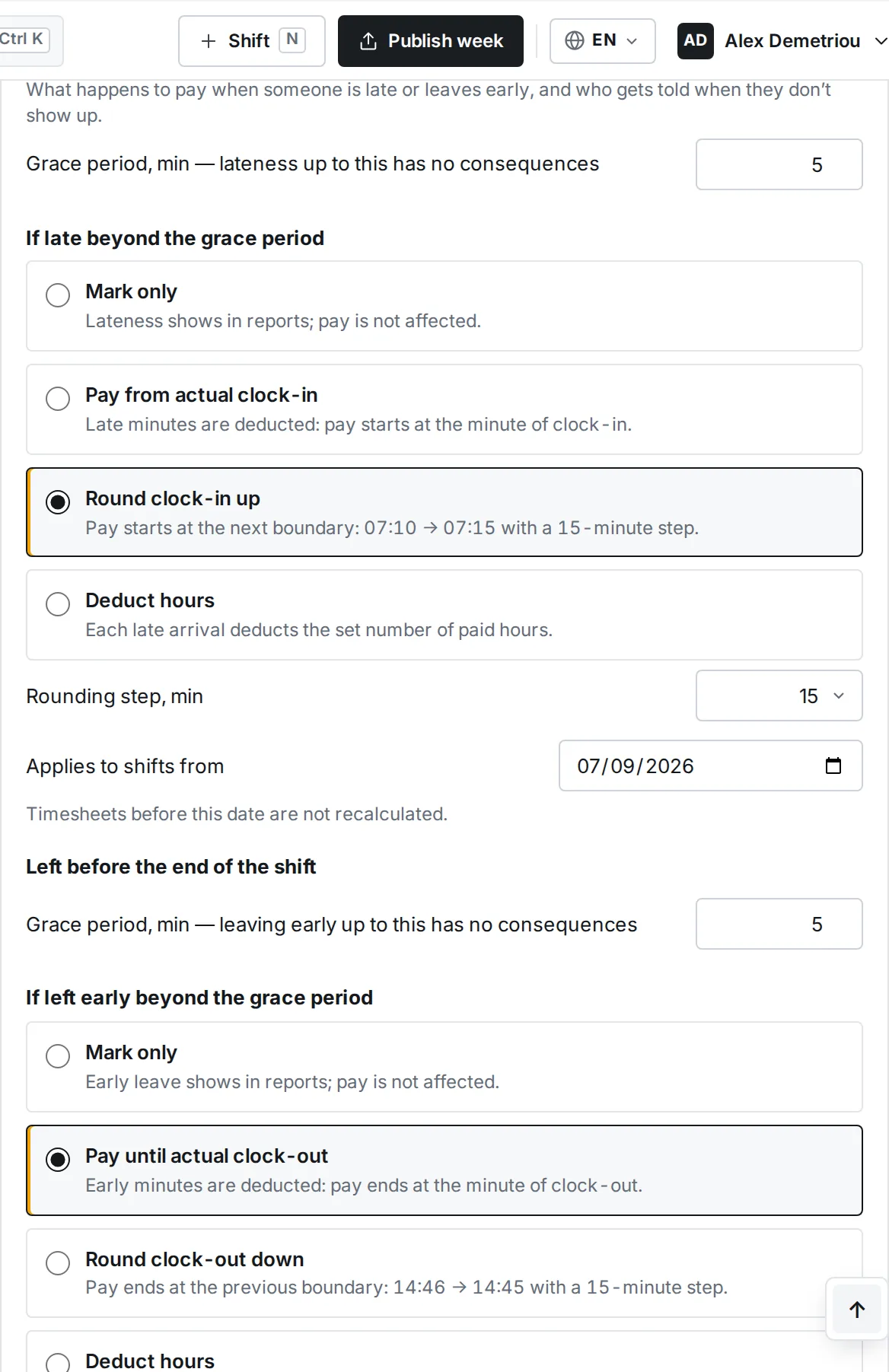
- Set the Grace period, min — lateness up to this has no consequences.
- Under If late beyond the grace period, choose a mode: - Mark only — lateness shows in reports, pay is not affected; - Pay from actual clock-in — pay starts at the minute of clock-in; - Round clock-in up — pay starts at the next step boundary (5, 10, 15 or 30 min): 07:10 → 07:15; - Deduct hours — a set number of paid hours is deducted for each late arrival.
- Set Applies to shifts from. Earlier timesheets are not recalculated.
- Do the same under Left before the end of the shift: grace period and mode (Round clock-out down, Pay until actual clock-out and so on).
- Under Didn’t clock in for a shift, set Count as a no-show after, min from start and who gets a message: managers, or the employee too.
- Tap Save.
Where to find it
- Computer: Settings → Lateness & no-shows. Phone: More → Settings.
- The owner and admins can change the rules. Managers can also waive a rule for a single shift.
FAQ
Someone was late for a good reason. How do I avoid cutting their hours?
In the timesheet, tap waive rule on that shift and add a comment. Pay starts from the scheduled start. Tap restore rule to undo.
Can one employee have a different grace period?
Yes: employee profile → Individual lateness / early-leave rules. Empty fields use the company settings.