For managers · 2 min read
Access levels and permissions
What employees, managers, account admins and the owner can do, how to change someone’s access level and transfer ownership.
Everyone in IzyShift has an access level. It decides what they see and what they can change.
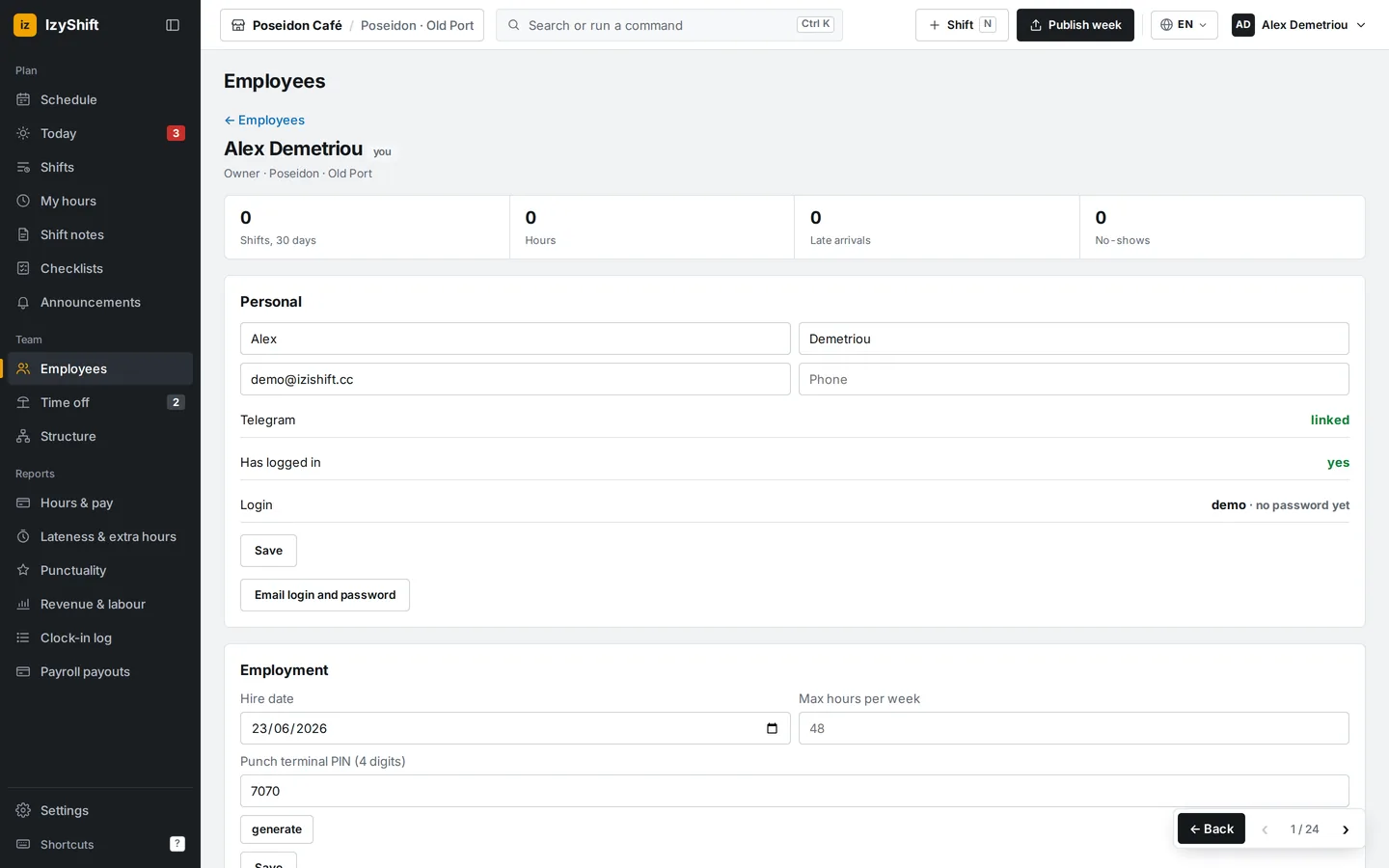
Steps
- Open Employees and tap a person.
- In their profile, find the Access section.
- Choose the access level. The change is saved immediately.
- For a manager, tick the departments they run under Manager’s departments. Nothing ticked means they manage the whole venue.
- To change the owner, tap Transfer ownership to this person and type the company name to confirm. You become an account admin.
Good to know
- Employee — own schedule, own hours, clock-in.
- Manager — schedule, employees, clock-in approvals. A department manager has the same rights, but only for their departments.
- Account admin — everything, including pay, settings and integrations; appoints managers.
- Owner — the same, plus appoints account admins, manages the subscription and can delete the company. There is always exactly one owner.
Where to find it
The Access section is in the employee profile. The owner and account admins can change levels. Only the owner appoints and removes account admins. The history of changes is in Settings → Access log.
FAQ
Why can’t I choose a level in a profile?
Nobody can change their own level. An account admin can’t edit the owner’s or another admin’s profile — the owner does that.
Can a manager change pay rates and settings?
No. Pay rates, company settings, integrations and the Revenue & labour report are available only to account admins and the owner.
Can I hide pay amounts from employees?
Yes. Settings → Payroll → untick “Employees see their pay amounts” (the owner and admins can change it; it’s on by default). Employees then see hours only — schedule, clock-ins, payable hours — and never the rate, shift amounts, “total to pay” or bonus/deduction amounts: not in the app, the bot, notifications or exports (the server doesn’t send them). Managers, admins and the owner see everything as before.