For managers · 2 min read
Get started: sign up and set up your venue
How to create your company in IzyShift, set up the venue, departments and roles in three steps, and what to do next.
This article is for owners connecting their café or restaurant to IzyShift for the first time. Sign-up takes two minutes, no card needed.
Steps
- Open https://app.izishift.cc and, under “No account yet?”, tap Create a company.
- Enter the company or venue name, your first name, last name and work email. Tick the box to accept the Terms of Use and tap Create a company.
- You are logged in right away. Your login is shown on screen, and an eight-digit password arrives by email — keep that email. Tap Open IzyShift.
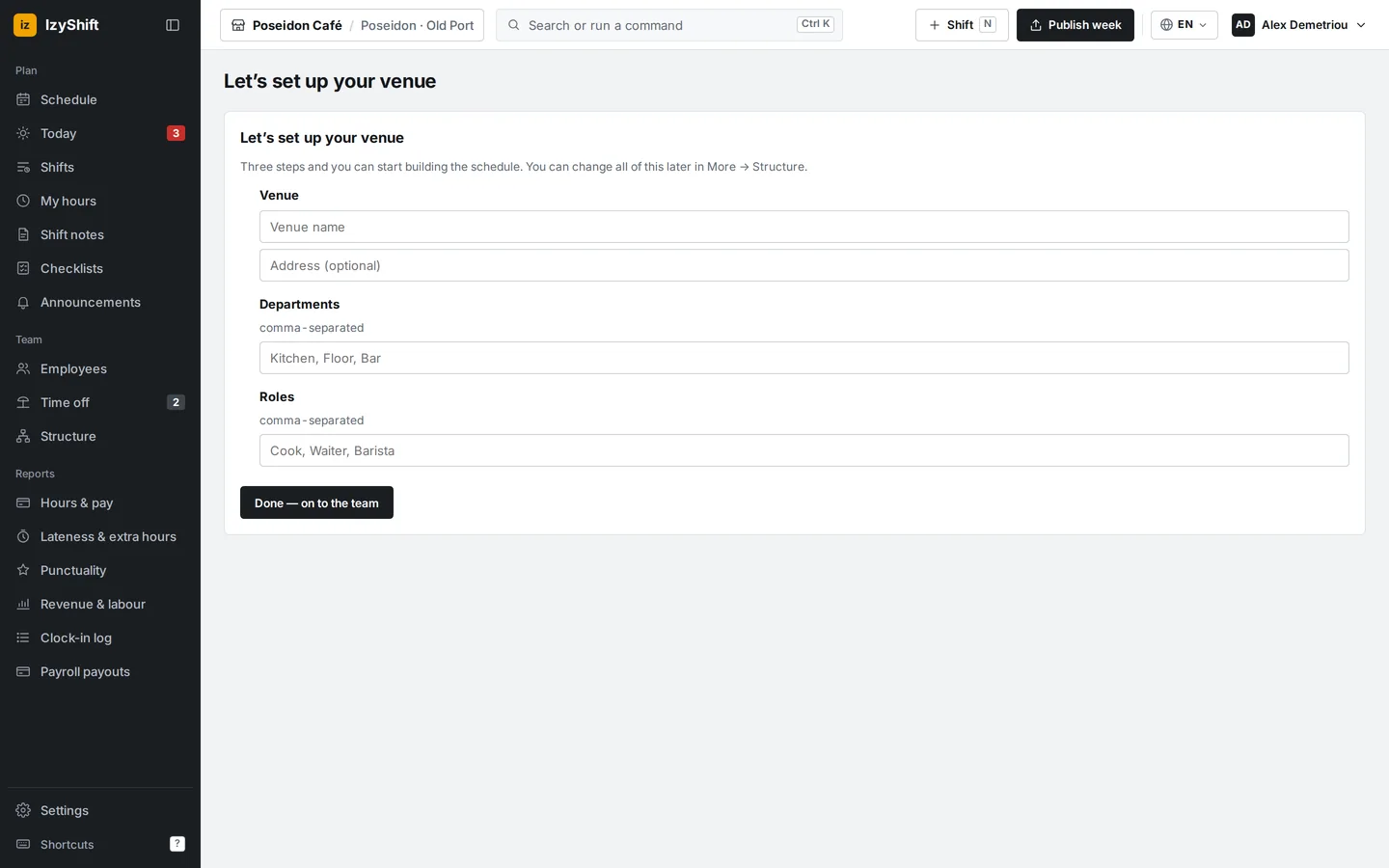
- The Let’s set up your venue screen opens. Fill in three steps: - Venue — the venue name and address (the address is optional); - Departments — comma-separated, for example “Kitchen, Floor, Bar”; - Roles — comma-separated, for example “Cook, Waiter, Barista”.
- Tap Done — on to the team. The employee list opens.
Good to know
- Add your team: manually or with an invite link, or from an Excel file.
- Build your weekly schedule and publish it.
Where to find it
Everything you entered in the setup can be changed later in Structure: on a phone go to More → Structure, on a computer use the menu on the left. The person who creates the company becomes its owner.
FAQ
Is it free?
Up to five employees at one location is free, with no card. When your team grows you will need a paid plan — see the article about the subscription.
I didn’t get the password email. What should I do?
Check your spam folder. If it isn’t there, tap Forgot login or password? on the login page — a new password will be sent to the same email.