For managers · 1 min read
Set up a clock-in terminal on a tablet
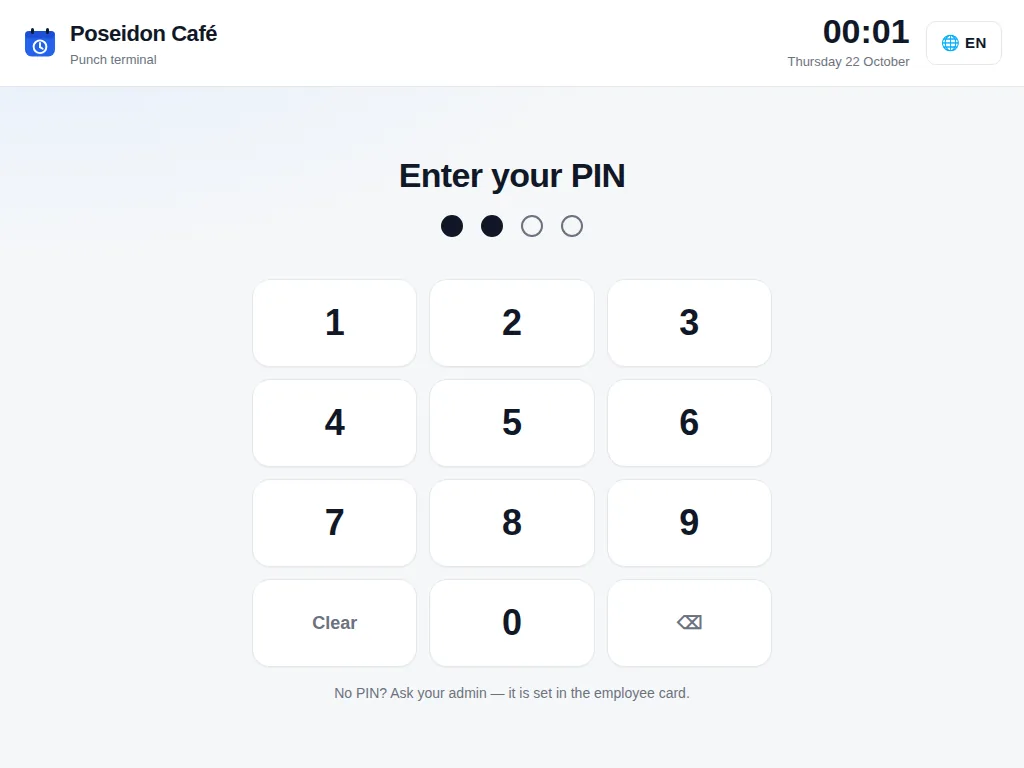
Turn on the terminal, open it on a tablet with a link or QR code, and give staff a 4-digit PIN.
The terminal is a tablet at the bar or by the entrance. Staff enter their PIN and start or end their shift — no phone needed.
Steps
- Open Settings → How employees clock in and tick Clock-in terminal.
- A Clock-in terminal block with a link appears. Tap Copy or QR code and open the link on the tablet. Leave the tablet in place.
- Give each employee a PIN: employee profile → Employment → Punch terminal PIN (4 digits). Tap generate, then Save. Two people can’t share a PIN.
- In the terminal block, Have a PIN shows how many people already have one and who is missing it.
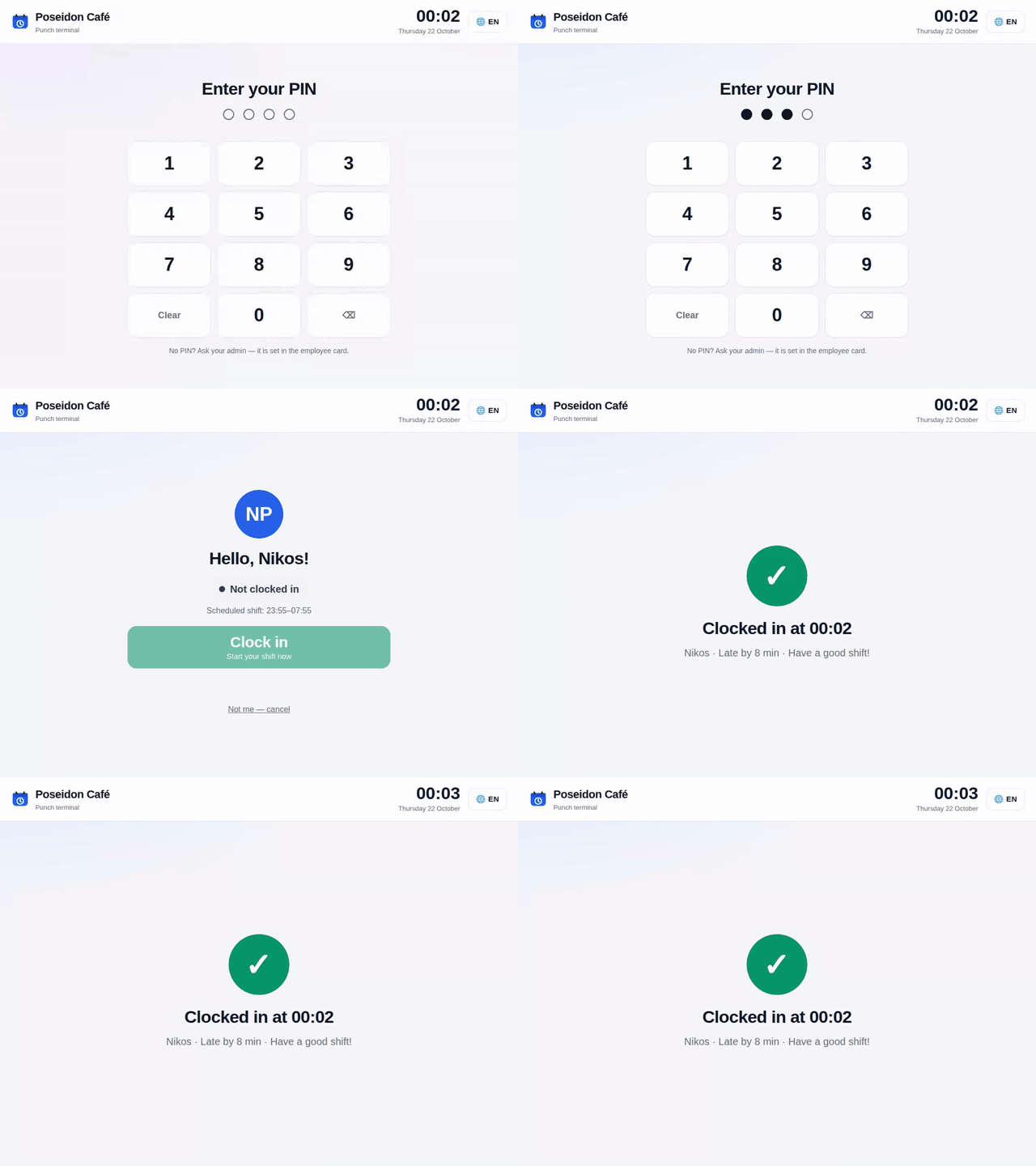
- The employee enters their PIN, sees their name and status, and taps Clock in or Clock out.
Where to find it
- Computer: Settings → Clock-in terminal block.
- Phone: More → Clock-in terminal.
- Only the owner and admins can see and change the link.
Good to know
- After 5 wrong PINs in a row the terminal pauses for 3 minutes; after many wrong attempts in a short time, for 15 minutes.
- If someone clocks out a couple of minutes after clocking in, the terminal asks again: Stay on shift or clock out.
- If someone comes to clock out but never clocked in, the terminal asks Did you forget to clock in? A “yes” goes to a manager for approval.
FAQ
The link got into the wrong hands. How do I disable it?
Tap Refresh link. The old link stops working immediately; open the new one on the tablet.