For managers · 2 min read
Open shifts and shift swaps
How to post a shift with nobody assigned, pick someone from the people who asked for it, and approve shift swaps between employees.
If this feature is turned on for your company, you can post a shift with nobody assigned as an open shift: suitable employees ask for it and you choose. Employees can also give away and swap their own shifts.
Steps
Open shift 1. In Schedule, click 🆓 Open shifts. 2. Fill in + Open shift: date, time, job role, department and How many slots. 3. Leave Publish now and notify suitable employees ticked and click Create. Only people who fit the shift by job role, availability and limits get a message. Drafts can be published later with Publish drafts (N). 4. When requests come in (🙋), click Assign next to the person you want.
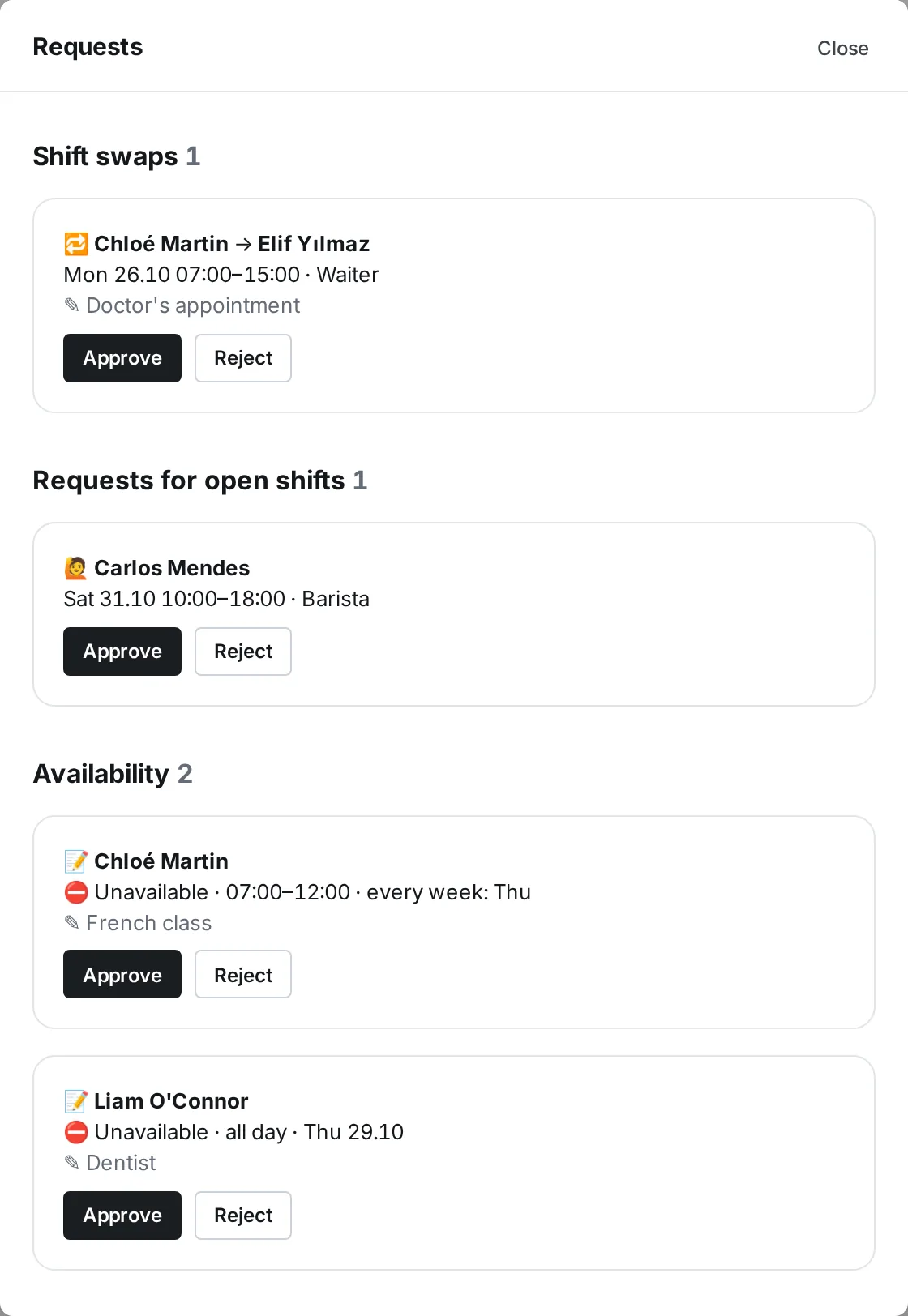
Shift swap 1. On their published shift, the employee taps 🔁 Give away or swap: give it to anyone suitable, give it to a colleague, or swap it for a colleague’s shift. 2. The colleague accepts. 3. You open 📥 Requests → Shift swaps and click Approve or Reject. The rules are checked again when you decide.
Where to find it
The bar above the schedule: 🆓 Open shifts and 📥 Requests (the number shows how many are waiting). Managers (department managers for their own departments), administrators and the owner use them. Whether your approval is needed is set in Settings → Scheduling → Manager approval: Shift swaps and give-aways, Requests for open shifts.
FAQ
What happens if approval is turned off?
The first suitable employee takes the open shift straight away, and a swap applies as soon as the colleague accepts it.
Do I need to publish the week after a swap?
No. The shift is already published; it simply moves to another person.