For employees · 2 min read
My shifts, swaps and time-off requests
Where to see your shifts, how to set your availability, give away or swap a shift, and request a day off or leave.
The Shifts section (on a phone — the My shifts tab) shows your schedule week by week. From here you can request time off and, if this feature is turned on for your company, set your availability and swap shifts with colleagues.
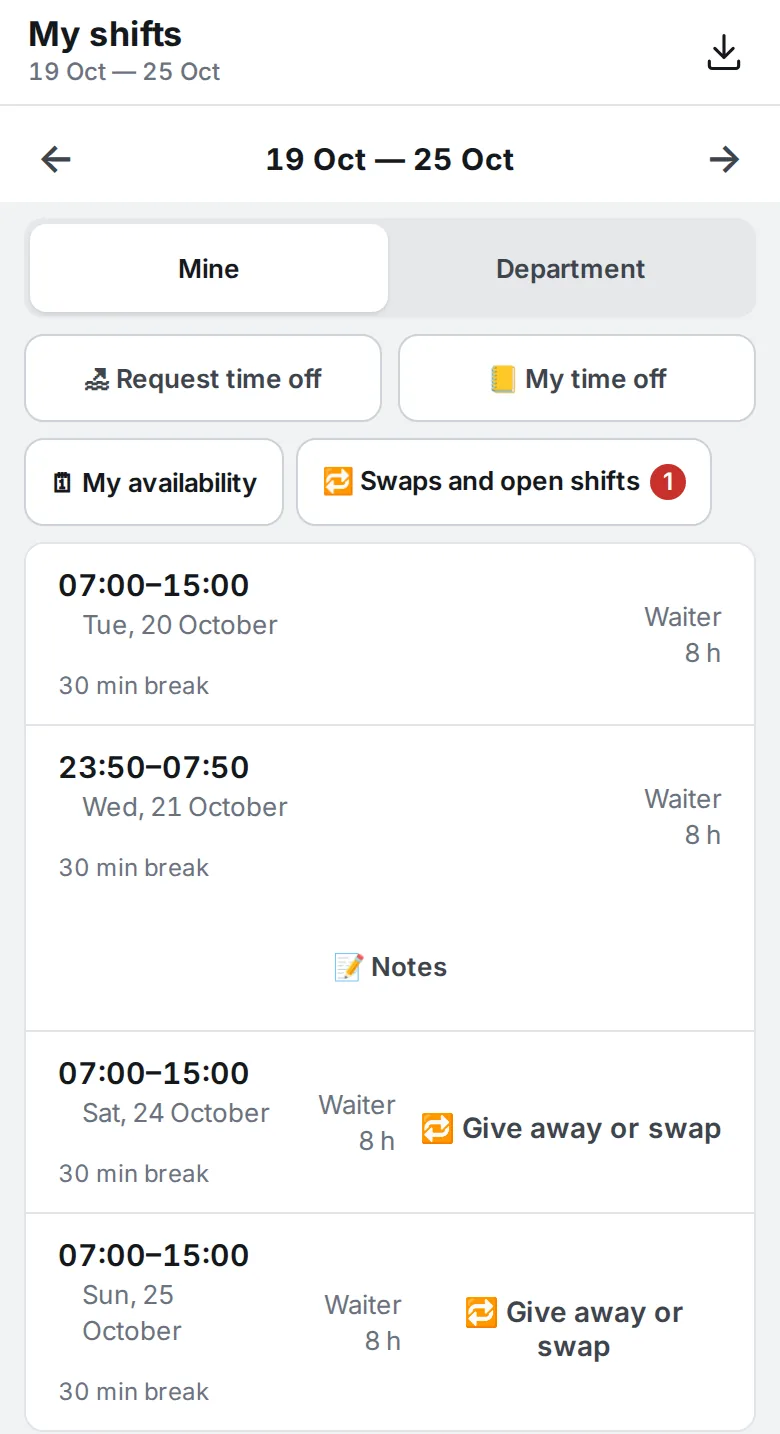
Steps
- Open My shifts on a phone or Shifts on a computer. Move between weeks back and forward.
- 🗓 My availability — mark when you are Unavailable, Only available at certain times, or Want to work. Your manager may need to approve “Unavailable” and “Only available”.
- 🔁 Give away or swap — a button on your upcoming shift. Choose: give it to anyone suitable, give it to a colleague, or swap it for a colleague’s shift.
- 🔁 Swaps and open shifts — open shifts for your job role (Ask for this shift or Take the shift), offers from colleagues (Accept / Decline) and your own requests.
- 🏖 Request time off — choose the type and dates, then send. The request appears in your shifts as “pending”; until it’s decided, you can Withdraw it.
- 📒 My time off — your leave and absences for the year.
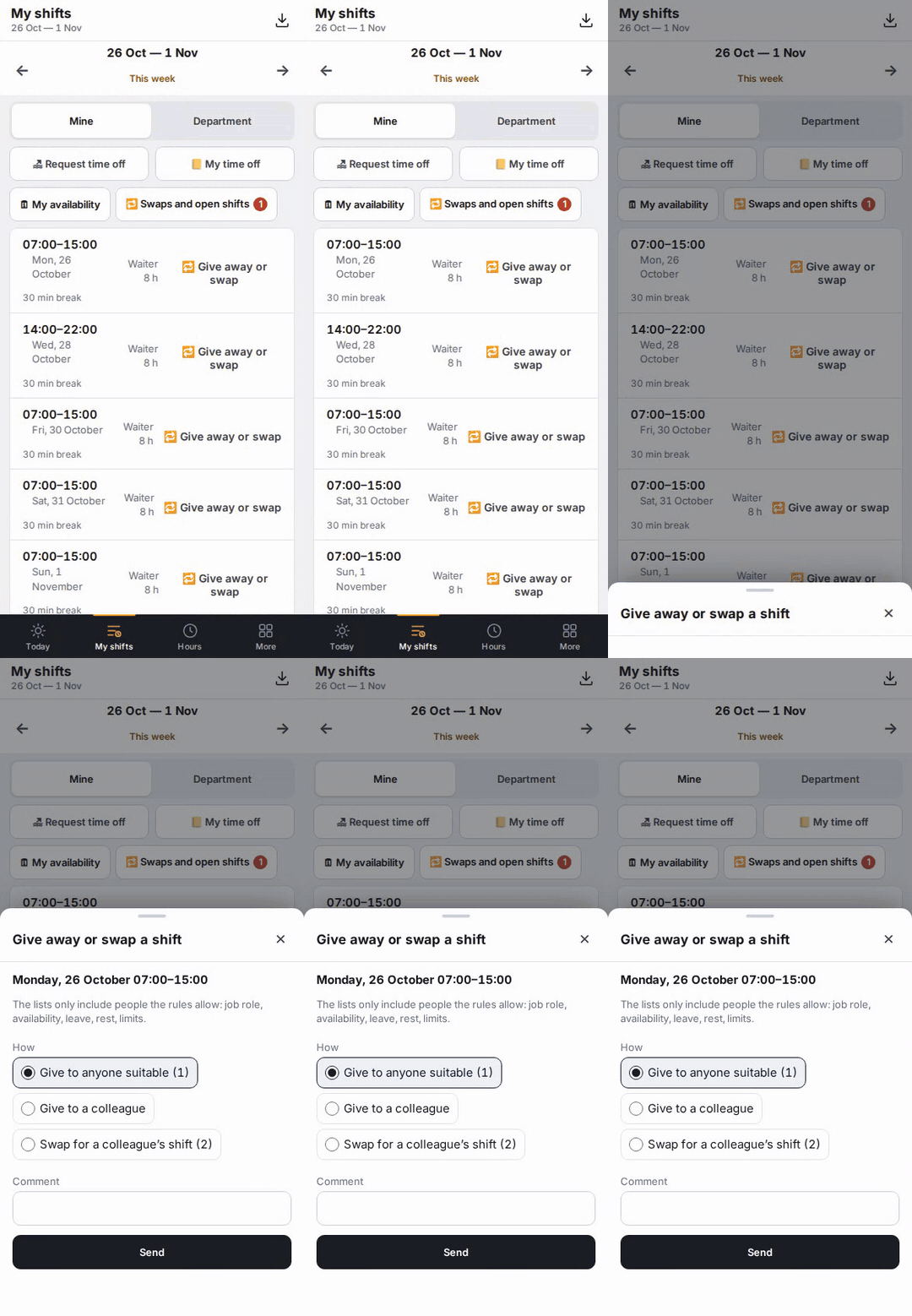
Where to find it
Phone — the My shifts tab at the bottom; “Request time off” and “My time off” are also under More. Computer — Shifts in the left menu.
FAQ
When does a swapped shift stop being mine?
When your colleague accepts. If your company needs manager approval, it changes after the manager approves. Until then, the shift is yours.
Why isn’t my colleague on the list?
The lists only show people the rules allow: job role, availability, leave, rest and hour limits.